
Club staff · 5 min read
Set up your club’s first calendar
Add your courts, opening hours, and coaches. Check the calendar before opening lesson requests to families.
Updated
1. Find or create your club
Start with Find your club. If your club already has a page, use Claim this club and sign in with your work email. Fill in your role and how it can be verified, then select Send claim for review. You’ll need approved access before managing that existing club.
For a new club, open Set up your club and sign in using the link sent to your email. On Your club, enter the name, number of courts, city, state, and timezone. Club address is the last part of your public web address. Select Save and continue to save these details and open Your schedule.
If the club is already managed, ask its administrator for access or contact BumpSetBook. Use the existing club page instead of creating a duplicate.
2. Give the calendar its starting hours
On Your schedule, choose what the club runs. Include Lessons if unused court time should be available for lesson requests.
- Choose Schedule starts and how many weeks to set up.
- Set Opens at, Closes at, and Open days to the club’s actual operating hours.
- Select Add activity for a regular practice, game, or rental. Enter its date and time, select the courts it uses, and set how many weeks it repeats.
- Select Save and continue. Your starting schedule is saved and the coach step opens.
An activity occupies only its selected courts. Include everything that uses court space so those times are not offered for lessons.
3. Add coaches and review the first week
On Your coaches, select Add coach and enter each coach’s name and email. The email is where lesson requests will go. You can also choose Continue without coaches and add them later. Coaches without an email remain drafts.
On Review calendar, check the dates, open hours, and courts used by activities. Select a day to return to the schedule and make a correction.
For an initial setup, leave Open lesson requests unchecked while you check the details. Select Open my calendar. Your club workspace opens with the calendar you just created.
Save and finish later keeps your setup draft so you can return. Adding coaches during setup does not send them an invitation.
4. Read and adjust your calendar
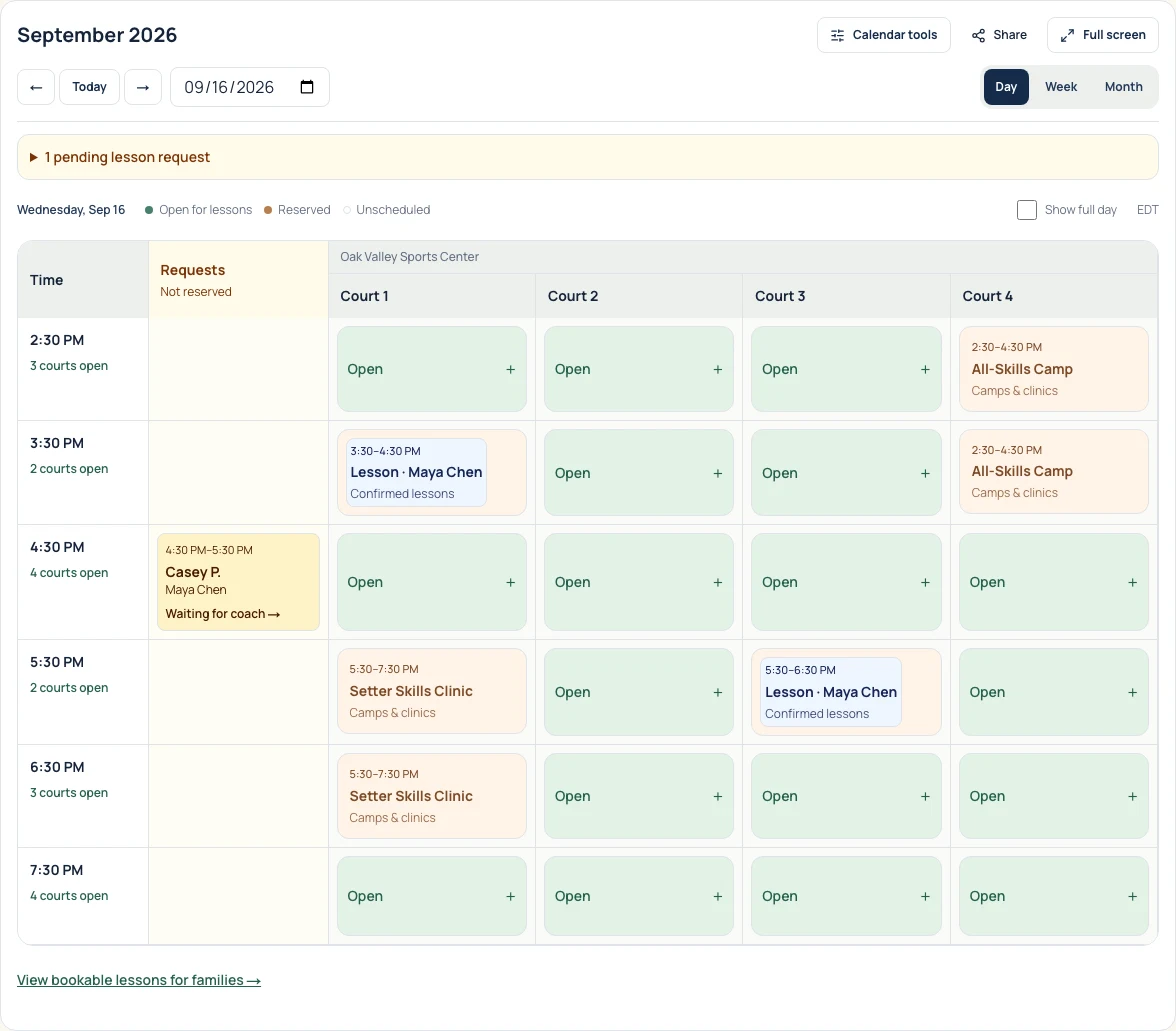
Use Day, Week, or Month to review the schedule. In Day view, green Open blocks show available court space. Confirmed lessons occupy a court. Pending requests appear separately and do not reserve that space yet.
Select an open block or Add time to add a lesson, practice, camp or clinic, event, or closure. A Closure starts with all active club courts selected; narrow the selection if only part of the facility is closed. Select an existing entry to review or change it.
5. Check the parent view, then open requests
In Coaches, review the coaches who will receive requests, their contact emails, lesson setup, and public profiles. In Settings, confirm the booking rules, payment instructions, and club contact. Use Payments if the club will offer online payment; that option needs the club’s payment setup first.
Follow the booking-status link above the calendar to complete any missing setup. Once the club is ready, select Open requests. Use View as a parent to check that the intended coaches and times appear, then share the club’s public page with families.
You can select Pause requests later to stop new lesson requests. Handle existing lessons through their own request and cancellation controls.
If something looks wrong
No Open requests button? Follow the booking-status link. The club needs courts, future lesson hours, an eligible published coach, and a booking contact.
No times in the parent view? Check the selected date and court type, future opening hours, activities occupying those courts, and the coach’s lesson setup or time off.
A change conflicts with a confirmed lesson? Reschedule or cancel that lesson before blocking its court or coach.
What you built
You have one club calendar with courts, operating hours, and activities. Your coaches can answer lesson requests, and families can use the public club page once requests are open. Keep the court calendar current as practices, closures, and lessons change.