
Coaches · 4 min read
Answer requests and block time off
Open your coach inbox, answer a lesson request, and block a one-time or weekly commitment.
Updated
1. Open your coach inbox
Open the club’s invitation, sign in with the invited email, and select Set up my coach inbox. Once it is ready, select Open coach inbox. You can return through Account → Coach inbox; on a smaller screen, open the menu first.
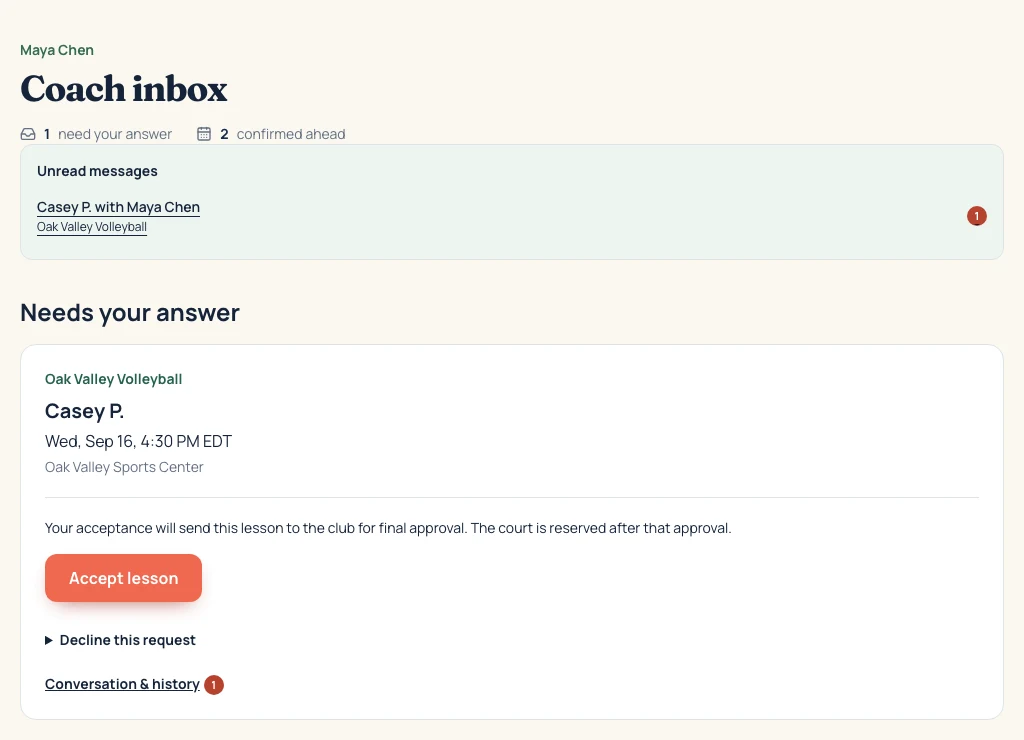
Needs your answer shows requests waiting on you. Your schedule lists confirmed lessons. Waiting for club approval shows requests you accepted that still need a club decision.
An account is optional for answering individual requests: you can also accept or decline through the secure link in a lesson email. Use the linked coach account to manage your own time off.
2. Answer a lesson request
Review the athlete, date, time, and venue under Needs your answer. Select Accept lesson if you can teach. If you cannot, open Decline this request, optionally add a message to the family, and select Decline lesson.
Read the result after accepting. Some clubs require a final approval before the court is reserved. Otherwise, accepting confirms the lesson if the court and coach are still available.
3. How to block a time you can’t teach
Scroll down to Lesson availability in your coach inbox. Your available hours follow the club’s open court times. Add exceptions for the times you cannot teach.
- Open Block time under the correct club.
- Choose the Date, then enter From and Until. Use the timezone shown below the form.
- For a regular commitment, select Repeat every week. Add a Last date if it should stop on a particular date.
- Select Block time to save. Check that the new date or weekly rule appears in the list above the form.
Example: for Tuesday practice from 4–7 p.m., choose the first Tuesday, enter 4 p.m. and 7 p.m., and select Repeat every week. Leave it unchecked for a single day off.
4. Reopen time or ask about a lesson
When a commitment changes, select Remove beside its time-off rule. The message Time reopened confirms the rule was removed. Removing a weekly rule removes that repeating block; add a replacement if you still need some of those dates blocked.
To discuss a specific lesson, open Conversation & history on its request. Write your message and select Send message. The parent, coach, and club administrators share that conversation.
If you can’t update your availability
Account not linked to a coach profile? Open the club invitation and sign in with the invited email. Ask the club for a new invitation if yours has expired.
A confirmed lesson overlaps? Reschedule or cancel it before blocking that time. Adding time off does not cancel a confirmed lesson for you.
A block will not save? Check that the end time is later than the start, the dates are current, and any Last date is on or after the first date. Ask club staff for help if your access has changed.
What you built
Your linked inbox brings requests and confirmed lessons together, and your time-off rules keep unavailable times out of your lesson options. Continue answering each request to confirm that you can teach that specific lesson.