
Parents · 4 min read
Request your first lesson
Find a court time, choose a coach, and follow your request through confirmation and payment.
Updated
1. Open your club’s Lessons page
Follow the link shared by your club, or open Find your club and select its name. Choose Lessons to see the court calendar and coaches.
Use Day, Week, or Month to find a date. If the club has indoor and sand courts, check the court-type filter. The page shows the club’s timezone.
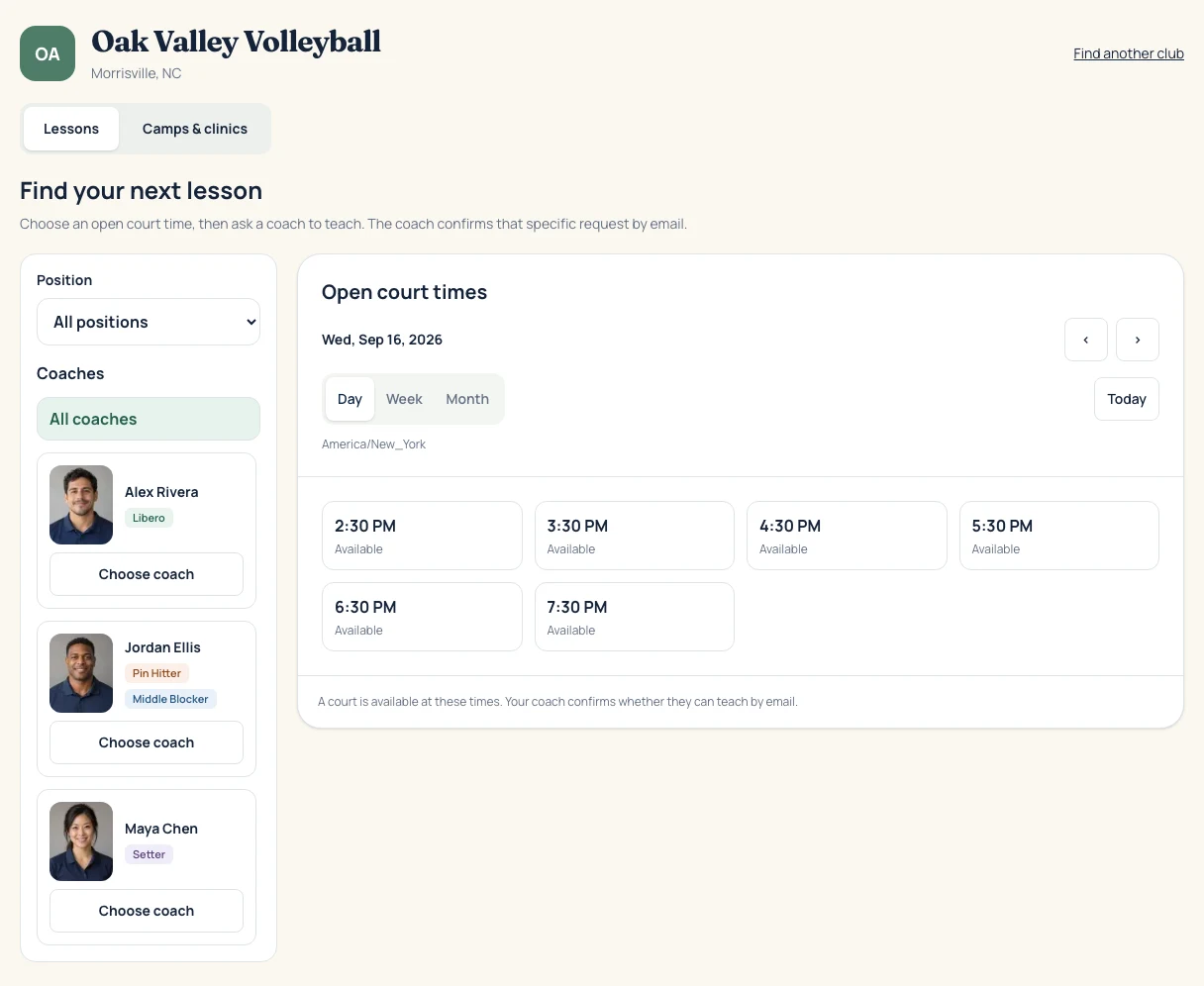
2. Choose a time and coach
Select an available time. In Request this lesson, choose a coach if more than one is available. Review the date, venue, coach, lesson length, and displayed price. Select Request this time to continue.
If you have a particular coach in mind, filter by that coach first. On a phone, use the Coach selector above the calendar.
An available court time is an invitation to request a lesson. The coach still needs to accept, and some clubs also require administrator approval.
3. Sign in and send the request
If asked, enter your email and open the sign-in link sent to you. Return to the selected lesson, review Your lesson, and select or add your athlete. Fill in any required contact details and review the terms shown on the form, then select Send request to coach.
Check the resulting request status. Waiting for coach confirmation means the request has been sent and is awaiting an answer. There is no payment at the initial request step; payment instructions follow confirmation.
4. Follow the answer and keep messages together
Watch for an email update, or open Account → My dashboard and your lessons. The coach may accept or decline. If the club requires approval, the request waits for that step before a court is assigned.
Open Conversation & history for the lesson to ask a question. Enter your message and select Send message. The parent, coach, and club administrators can read the conversation; new messages also appear through the notification bell.
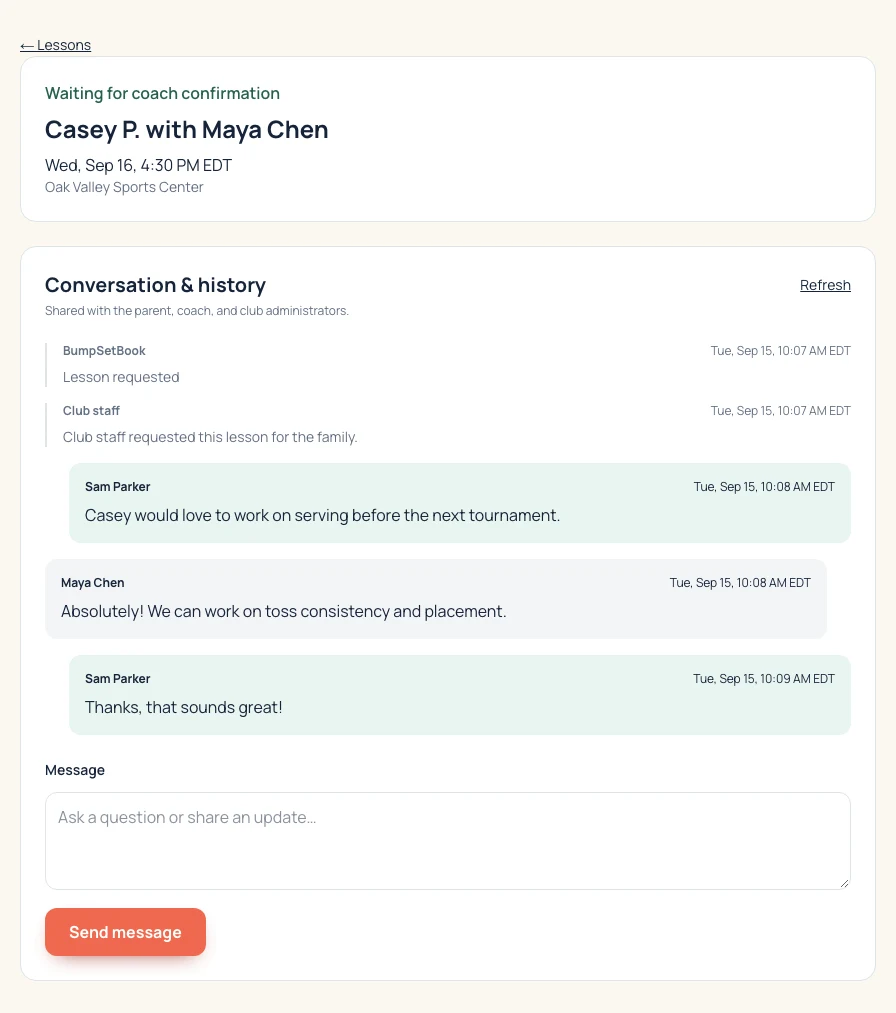
5. Check the confirmation and payment instructions
Check the confirmed date, time, venue, and assigned court. Follow the club’s payment instructions. If the lesson shows Pay to confirm or Pay for lesson, open that link and complete payment by the displayed deadline to keep the time.
Use the calendar links in the confirmation email to add the lesson to your calendar. These are saved copies: check BumpSetBook again if the lesson is rescheduled.
How to change a lesson
Open your lesson in My dashboard. For an eligible confirmed lesson, select Reschedule lesson, choose another open time, and select Request new time. Your original lesson stays reserved while the new time awaits acceptance and any required club approval.
To cancel, use the cancellation option on the lesson and read the displayed policy before submitting. If the option is unavailable or you have a refund question, contact the club through the conversation.
If you can’t request a time
Calendar preview or Lesson requests open soon? The club has not opened requests yet. Contact the club; signing in will not open booking.
No openings? Try another day and check the coach and court-type filters. A coach’s time off or existing lessons can narrow the choices.
Sign-in email missing? Check spam and confirm the email address you entered. Request a fresh link if the previous one has expired.
What you built
You have a lesson request with a place to track its status, ask questions, and follow confirmation and payment. Wait for the confirmed details before heading to the club.